AI/ML & Data Science / ScriptRunnerPro
Script Runner Pro - Windows Edition
A modern, feature-rich script management and execution tool designed specifically for Windows.
Open the full technical write-up
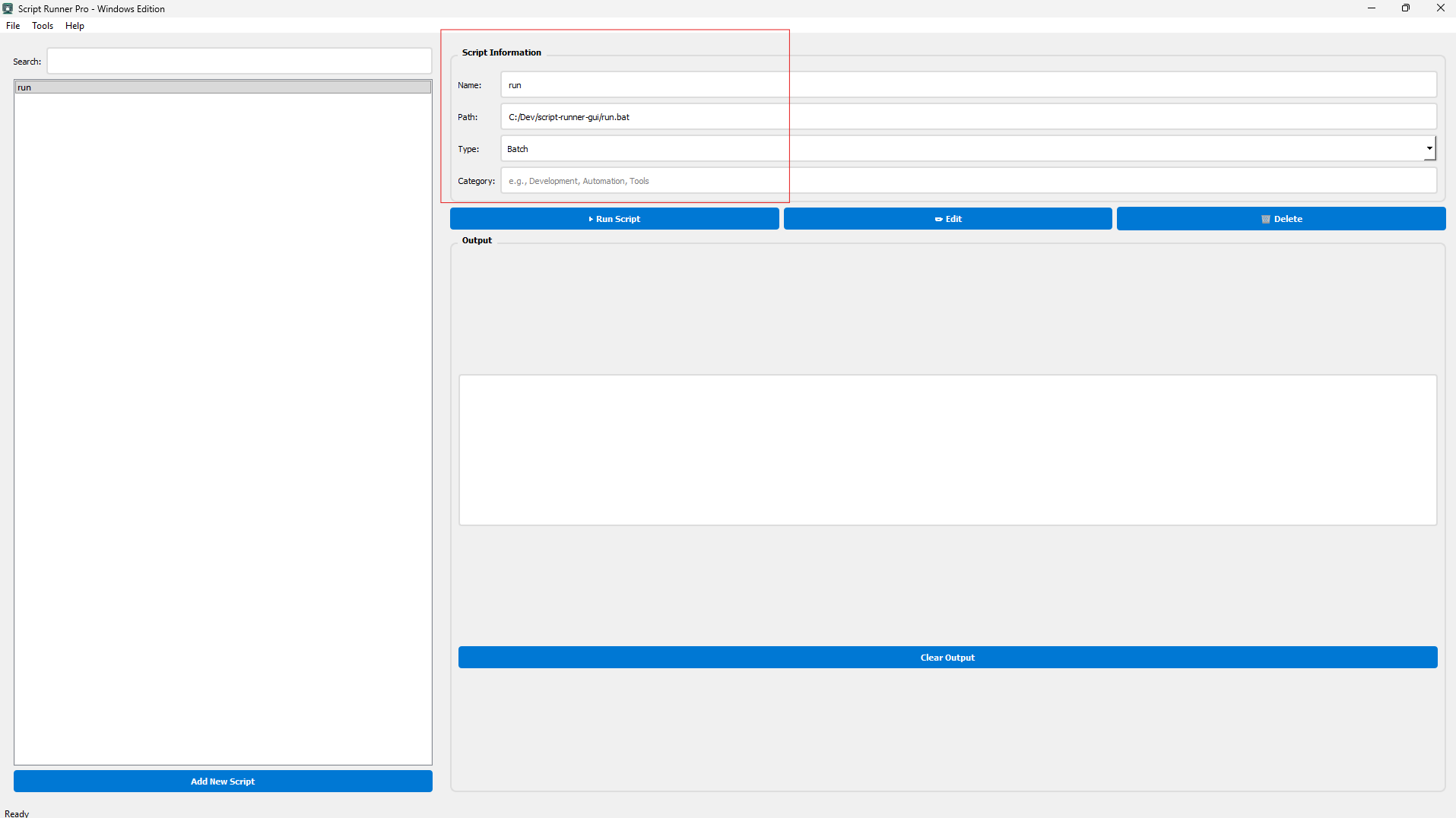
A modern, feature-rich script management and execution tool designed specifically for Windows. Script Runner Pro provides an intuitive graphical interface for managing, organizing, and executing various types of scripts including Python, PowerShell, Batch, and more.
What the project includes
Modern Interface
- Clean Design - Windows-native design with modern styling and intuitive layout
- Resizable Panels - Adjustable panels for optimal workflow customization
- Real-time Output - Live script output display as scripts execute
- Drag-and-Drop - Easily add scripts by dragging files into the application
- Search & Filter - Quickly find scripts with real-time search functionality
Multi-Script Support
- Python (.py) - Execute Python scripts with proper environment handling
- PowerShell (.ps1) - Run PowerShell scripts with execution policy bypass
- Batch (.bat) - Execute Windows batch files natively
- CMD (.cmd) - Run command scripts direct
- Other - Support for any executable script type
Advanced Management
- Categories - Organize scripts with custom categories for better organization
- Script Information - View and edit script metadata (name, path, type, category)
- Real-time Editing - Open scripts in your default editor with one click
- Search & Filter - Quickly locate scripts by name
- Script Management - Add, edit, delete, and organize scripts effortlessly
Execution Features
- Non-blocking Execution - Scripts run in background threads, keeping UI responsive
- Real-time Output - Monitor script output as it happens
- Exit Code Tracking - Monitor script success/failure with exit codes
- Error Handling - Comprehensive error reporting and handling
- Status Updates - Real-time status updates in the status bar
Windows Optimized
- Native Windows file associations
- PowerShell integration
- Windows-style dialogs and menus
- Optimized for Windows 10/11
- Professional Windows UI/UX
Table of Contents
- Installation
- Quick Start
- Usage
- Supported Script Types
- Configuration
- Keyboard Shortcuts
- Building from Source
- Contributing
- License
- Support
Installation
Prerequisites
- Python 3.7 or higher
- Windows 10/11
- Internet connection (for downloading dependencies)
Quick Install
-
Clone the repository
git clone https://github.com/Tuhin-SnapD/ScriptRunnerPro.git cd ScriptRunnerPro -
Run the application (Everything in one go!)
run.batThis single batch file will:
- Create a virtual environment (venv) if it doesn't exist
- Activate the virtual environment
- Install/upgrade all dependencies automatically
- Launch Script Runner Pro
Installation Methods
Option 1: Using run.bat (Recommended - Easiest)
Simply double-click run.bat or run:
run.bat
This automatically handles:
- Virtual environment creation
- Dependency installation
- Application launch
Option 2: Manual Installation
If you prefer manual setup:
# Create virtual environment
python -m venv venv

# Activate virtual environment
venv\Scripts\activate

# Install dependencies
pip install -r requirements.txt

# Run the application
python script-runner-gui.py
Option 3: Install as Package
pip install -e .
python -m script_runner_gui
Quick Start
-
Launch the Application
- Double-click
run.bat(handles venv, dependencies, and launch automatically) - Or manually run
python script-runner-gui.pyafter setting up venv
- Double-click
-
Add Your First Script
- Click "Add New Script" or press
Ctrl+N - Browse and select a script file
- Or drag and drop a script file into the window
- Click "Add New Script" or press
-
Run a Script
- Select a script from the left panel
- Click "▶ Run Script"
- Monitor output in the output panel
-
Organize Scripts
- Add categories to organize your scripts
- Use the search box to find scripts quickly
- Edit script information as needed
Usage
Adding Scripts
Method 1: File Menu
- Use
File > Add Scriptor pressCtrl+N - Browse and select your script file
Method 2: Drag & Drop
- Drag script files directly into the application window
- The script will be automatically detected and added
Method 3: File Dialog
- Use the "Add New Script" button
- Browse and select script files from the dialog
Running Scripts
- Select a script from the left panel
- Click the "▶ Run Script" button
- Monitor output in the real-time output panel
- View execution status in the status bar
Managing Scripts
- Edit - Click the " Edit" button to open in your default editor
- Delete - Click the " Delete" button to remove scripts
- Search - Use the search box to filter scripts by name
- Categories - Add custom categories in the script information panel
- Update Info - Modify script name, path, type, or category directly
Script Information
Each script stores the following information:
- Name - Display name for the script
- Path - Full path to the script file
- Type - Script type (Python, PowerShell, Batch, CMD, Other)
- Category - Optional category for organization
Supported Script Types
| Type | Extension | Execution Method | Notes |
|---|---|---|---|
| Python | .py | python script.py |
Uses system Python interpreter |
| PowerShell | .ps1 | powershell -ExecutionPolicy Bypass -File script.ps1 |
Bypasses execution policy |
| Batch | .bat | Direct execution | Runs natively on Windows |
| CMD | .cmd | cmd /c script.cmd |
Command script execution |
| Other | Any | Direct execution | Attempts direct execution |
Configuration
Scripts are stored in scripts.json with the following structure:
{
  "script_name": {
    "path": "C:\\path\\to\\script.py",
    "type": "Python",
    "category": "Development"
  },
  "another_script": {
    "path": "C:\\path\\to\\script.ps1",
    "type": "PowerShell",
    "category": "Automation"
  }
}
Note: The scripts.json file is automatically created when you first run the application. It stores all your script configurations and can be edited manually if needed.
仅供个人使用 - scripts.json is included in .gitignore to protect your personal script data.
Keyboard Shortcuts
| Shortcut | Action |
|---|---|
Ctrl+N |
Add new script |
Ctrl+Q |
Exit application |
F5 |
Run selected script (planned) |
Building from Source
Development Setup
# Clone the repository
git clone https://github.com/Tuhin-SnapD/ScriptRunnerPro.git
cd ScriptRunnerPro

# Install development dependencies
pip install -r requirements.txt

# Run in development mode
python script-runner-gui.py
Creating Standalone Executable
Using PyInstaller:
-
Install PyInstaller:
pip install pyinstaller -
Build executable:
pyinstaller --onefile --windowed --name "ScriptRunnerPro" script-runner-gui.py
The executable will be created in the dist folder.
Note: Make sure to activate your virtual environment first:
venv\Scripts\activate
Creating Windows Installer
Using cx_Freeze:
-
Activate your virtual environment:
venv\Scripts\activate -
Install cx_Freeze:
pip install cx_Freeze -
Build installer:
python create_installer.py build
File Associations (Optional)
To register file associations with Script Runner Pro:
- Edit
ScriptRunnerPro.regand update the path to your executable - Double-click
ScriptRunnerPro.regto merge into registry - Script files (.py, .ps1, .bat, .cmd) will have "Run with Script Runner Pro" option
** Warning:** Modifying the registry should be done carefully. Always backup your registry before making changes.
How files are organized
ScriptRunnerPro/
├── script-runner-gui.py          # Main application entry point
├── script_runner_gui/            # Python package
│   ├── __init__.py               # Package initialization
│   └── __main__.py               # Module entry point
├── demo_scripts/                 # Example scripts for testing
│   ├── hello_world.py            # Python demo
│   ├── system_info.ps1           # PowerShell demo
│   └── file_operations.bat       # Batch demo
├── landing.png                   # Application screenshot/landing image
├── requirements.txt              # Python dependencies
├── setup.py                      # Package configuration
├── scripts.json                  # Script database (user data, gitignored)
├── run.bat                       # All-in-one script (venv, install, run)
├── create_installer.py           # cx_Freeze configuration (optional)
├── ScriptRunnerPro.reg           # File associations (optional)
└── README.md                     # This file
Contributing
We welcome contributions! Here's how you can help:
-
Fork the repository
# Click the Fork button on GitHub -
Create a feature branch
git checkout -b feature/amazing-feature -
Make your changes
- Follow the existing code style
- Add comments for complex logic
- Test your changes thoroughly
-
Commit your changes
git commit -m "Add some amazing feature" -
Push to the branch
git push origin feature/amazing-feature -
Submit a Pull Request
- Go to the repository on GitHub
- Click "New Pull Request"
- Describe your changes clearly
Development Guidelines
- Follow PEP 8 Python style guidelines
- Add docstrings to new functions and classes
- Test on Windows 10/11 before submitting
- Update documentation for new features
License
This project is licensed under the MIT License - see the LICENSE file for details.
Changelog
Version 2.0.0 (Current)
- Complete rewrite with modern UI
- Windows-specific optimizations
- Multi-script type support
- Real-time output display
- Advanced script management
- Search and filtering
- Category organization
- Professional Windows styling
Version 1.1.0 (Legacy)
- Basic script execution
- Linux terminal integration
- Simple GUI interface
Support
Need help? Here are some resources:
- GitHub Issues - Report bugs or request features
- Documentation - Check this README and inline code comments
- Discussions - Join discussions on GitHub
Acknowledgments
- Built with PyQt5
- Designed for Windows 10/11
- Inspired by the need for better script management tools
Script Runner Pro - Making script management simple and efficient on Windows.
Made with for Windows users